The workspace
A tour of the Neuralis workspace: chat, calendar, files, terminal, machine, and admin.
After signing in you land in the workspace: a full-screen shell with a dock and a stage of resizable widget panels — closer to an operating system desktop than to a chat app. Every panel is a widget contributed by a package — the host only renders the shell. What appears in your dock depends on which packages are enabled and which features your role grants: widget and dock snapshots are filtered server-side, so a surface you cannot use is simply absent. A member, a manager, and an owner genuinely see three different workspaces over the same deployment.
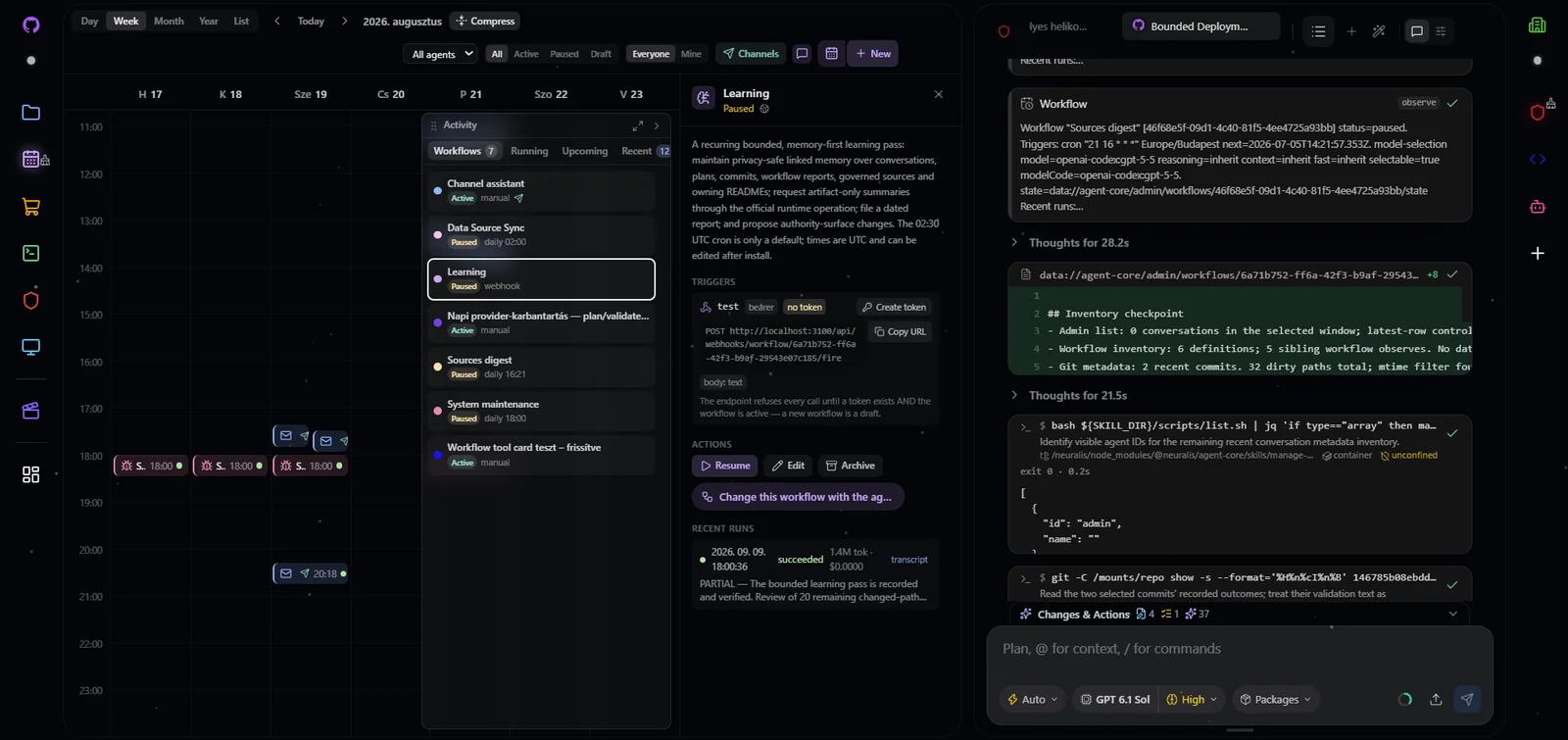
Calendar and Chat in a configured workspace. The installed packages and agent names belong to this installation.
How widgets open and dock
Packages declare widgets and dock items in their manifests. The dock lists your project's agents and the package surfaces (files, calendar, terminal, machine, admin); clicking an entry opens the matching widget into the stage, where panels can be rearranged and resized side by side. The Layout settings let you switch the stage between three modes — tiled resizable panels (the default), a free-floating canvas you can pan and zoom, or a snap-to-grid — and set a default transparency for widgets and for the dock itself. Every widget header renders the same compact control strip — an optional transparency cycle and a close button — regardless of its chrome style. The chat widget opens automatically when you select an agent. Agent tiles use the agent's configured icon and color everywhere; if either is absent, all first-party surfaces apply the same icon and deterministic-color fallback. Human profile avatars and the project's own icon are configured separately — see Profile and project appearance.
Customizing the docks
Layout → Edit docks puts both docks into edit mode. Drag an item to a new place (or focus it and use the arrow keys), or hide it with its small trash badge (or the Delete key). Hidden items collect in a dashed hidden tile at the end of the dock; open it and click an item to bring it back. Each dock has its own Save and Cancel. When one dock is saved and the other is still being edited, Edit docks brings the saved one back into edit mode and leaves the other's changes alone; with both docks in edit mode it asks before discarding both. Items reorder within their own group — the separators between package trust tiers stay — and the account, project, Layout and create-agent entries are fixed. The order and the hidden set are saved per project, in this browser; another browser or machine starts from the default order.
Notifications and the Inbox
When a package reports something you should know about — a workflow run you created finished or failed, a workflow was paused automatically, a source stopped syncing — the dock entry it belongs to shows a small lavender count badge (1–99, then 99+). Clicking the badge opens a short list beside the item: the work's title, when it happened and how many times; a colored stripe on each row says whether it failed, needs attention or is done. What that list shows is marked read, and clicking a row opens the app's widget at that item. (If no agent is selected yet, opening a row selects the project's first agent, because widgets open in an agent's context.)
The full history lives in the Inbox, inside the account menu: Unread and All tabs, notifications grouped by app under each app's own dock icon with the app's number of notifications beside it (all of them, read or not — the ones Clear would remove). Each app shows its newest four; the arrow beside it expands the app to page through the rest. Per app there is Mark read and Clear — Clear asks once more, then deletes that app's notifications for you, unread ones included, and cannot be undone — and Mark all read covers the project. Open in Inbox under a badge's list opens the All tab, so what you just read is there. A dot on your avatar means something is unread in this project; a dot on the project switcher means something is unread in another of your projects, and the switcher's list shows each project's unread number. The Inbox's settings list every kind of notification you can receive in this project, each with three choices: the default (Mine — only what concerns you — or Off for a kind that is not on by default), All (follow every one you are allowed to see in the project, such as a teammate's failing workflow), or Mute. Following never shows you anything your role could not already see. Notifications stay per project; how they are stored and kept is described under multi-tenancy.
Profile and project appearance
Your profile and the project each carry an appearance: an icon from the platform icon library, a color, and an optional picture (PNG, JPEG or WebP). A Background toggle chooses between a Tile — the icon on a tile of its color — and Transparent, which draws the icon in its color with no tile (a picture keeps its own transparency). The project switcher shows the current project's icon. Anyone edits their own profile; a project's appearance, like its name, is edited by an owner-strength role and is the same for every member.
Chat
Chat is the primary surface, contributed by agent-core. Conversations open as tabs; the conversation picker lists every conversation for the active agent with search, time filters, per-conversation cost, a changes/actions summary, and a context-window usage bar.
The composer's bottom bar carries the per-conversation runtime controls:
- Model controls — a two-segment pill: the model name opens a provider-grouped model picker; the reasoning badge opens a popover with the effort grid, a fast-mode toggle, and an extended-context-window switch (only the controls the selected model actually supports are shown). See providers and models.
- Permission profile —
Safe,Balanced, orAuto, controlling how eagerly risky tool calls pause for your approval. While a tool waits, the approval renders inline in the timeline with approve/deny buttons. - Packages — enable or disable individual packages for this conversation. A disabled package loses its tools and its injected context server-side, on top of the agent's own package baseline.
The timeline itself is built for real work, not transcript scrolling. It is fully virtualized, so day-long conversations stay smooth; packages render interactive cards directly into it — file-change reviews, approvals, tool results with their own UI; and every turn carries actions: edit a past message, undo or retry the last response, or rewind the conversation to any point — each optionally reverting the file changes made after it. If a stream stops silently, a banner names the reason and offers Continue; interrupted tool calls are repaired automatically on the next turn.
If the platform itself interrupts a response — a restart, or a process that stopped unexpectedly — the work up to that point is already saved, and the conversation says so when you come back to it, including after a page reload. Your own interrupted response picks itself back up once, automatically; anyone else watching the same conversation sees the banner and can continue it by hand. A response parked on an approval is never continued automatically, because doing so would answer a request nobody had seen.
You also never wait for an agent: the composer stays live mid-stream and
queues follow-up messages per conversation, visible in a Queue tab. When the
conversation deserves the whole widget, focus mode (the handle on the
composer's bottom edge, or /focus) folds the tab bar and the control chips
away so the timeline fills the panel — every control stays one restore away.
A Changes & Actions panel summarizes file changes, tool activity, queued messages, and delegate runs for the conversation — delegate (sub-agent) transcripts open as a read-only sub-timeline.
Neuralis chat is multi-user: when a teammate is streaming in a conversation you have open, their avatar appears on the agent's dock tile, the composer locks read-only with a "responding…" banner, and the timeline refreshes automatically when their turn lands.
The same banner appears for a turn no browser is driving — a scheduled workflow run, a finished background task reporting back, a message another agent sent into the conversation — and it names what is running rather than who. That banner carries a Stop. Everyone who can write the conversation sees it; whether it takes effect is the platform's answer, not the button's: you can end a turn that runs as you (a background task you started, a workflow you created), and an admin can end anyone's. Stopping keeps whatever the turn produced and offers no resume, so it means "that is enough", not "try that again"; a workflow turn also closes its run, so a restart will not pick it back up.
One of your own background reports is delivered as a normal streaming turn — with the live text, Stop and approvals — whenever the conversation it belongs to is open as a tab in your workspace and idle. Otherwise the platform runs that turn itself, which is also what always happens for work answering an outside chat channel.
Calendar
The Calendar widget, also contributed by agent-core, is where the workforce
framing becomes literal: it shows every
workflow in the project — scheduled
agent work — on Day/Week/Month/Year views, with a live activity rail that
pulses when a colleague's run starts and shows who each run executes as.
Entries are created from package-shipped templates or a blank form; runs
land as normal conversations with an origin badge, and each run records a
short result summary so a green checkmark also tells you what actually got
done. Visible to workflow.read holders only.
Files
The Files widget, contributed by brain-core,
browses every attached source — the project data zone, extra mounted folders,
the vector memory — through one URI-addressed tree. Its Sources panel
attaches, describes, syncs, enables/disables, and deletes sources, and
discovers mountable roots. Agents use the same filesystem through the fs_*
tools, and their file changes surface in chat as reviewable change cards. See
the Files UI.
Terminal
The terminal is an xterm-style PTY terminal for
the human user (agents use their own sandboxed shell tool instead). A dropdown
next to the tab bar opens new tabs rooted in any connected source's folder, and
privileged roles get a container-root tab — or, where an operator has
provisioned the host plane, a tab attached to the host machine itself. The
widget is visible with terminal.read; without core.execute the session is
view-only and keystrokes are dropped. See the
terminal page.
Machine
The machine package gives each user a persistent virtual Linux desktop (a Webtop container streamed into the widget over Selkies). You can use it directly, and agents can drive its browser and desktop through the machine_use tool — with screenshots and recordings flowing back into chat.
Admin
The admin package renders a sidebar widget with two scopes:
| Scope | Tabs |
|---|---|
| Project — the active project | Overview, Users, Agents, Roles, Limits |
| Platform — system-wide | Dashboard, Projects, Logs, Config, Credentials, Canvas |
Only the Dashboard is visible to everyone; every other platform tab appears only when your role grants the matching feature, and the project editors fall back to read-only unless your role carries the role-management flag. This is where operators manage users, roles, limits, platform config, and the credential store — see administration and the admin UI.